|
How to calculate course lengths
|   |
|
How to calculate course lengths
| |
The course length is shown in the header of the control descriptions. It is also part of the exported course data in the XML file to the event administration system.
You can enter a course length manually, or you can let Condes calculate the course length.
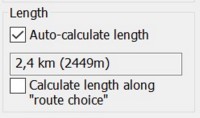
To configure which option you want to use, there is a "Length" section in the Course dialog. The checkbox "Auto-calculate length" controls whether Condes calculates the course length, or a (free) text is used.
Additionally, there is a checkbox that controls if the length should be calculated along the configured route choice (Select Route Choice Line). If this box is not set, Condes uses the distance along the course leg line between each control. When the box is checked, and a configured route choice is available, Condes uses the distance along the route choice line.
Calculating the course length
Condes calculates the length along the leg line between the controls. This calculation is based on the co-ordinates of the controls, including start and finish points. Co-ordinates are measured at 0.01 millimeter accuracy on the map.
Condes uses the map scale when converting the course length from millimeters on the map to meters in the terrain. It is important for this conversion that the map scale is entered correctly.
If the course includes a "control" designated as a crossing point, the course length calculation takes this into consideration and include the additional length due to the crossing point.
Condes also takes into consideration the shape of the line connecting the controls, i.e. if the line has been "bent" to avoid covering features on the map, this affects the course length.
Finally, in case you want to include the distance from the time start to the start of navigation (the start triangle), you can assign this distance to the start point by entering the value in the appropriate field of the Control dialog for the start point.
Course length along the logical route choice
For sprint courses, the course length must be calculated along the logical route choice. To configure the length to be calculated along the "route choice", check the appropriate box in the Course dialog as shown above.
To use this option, you need to draw the route choices for each leg on the course. See How to draw and use route choices for more details.
It is important that the route choice line is drawn for each leg on the course; if not, the course length calculation will not be correct.
If alternative route choice lines arer drawn between two controls, Condes uses the shortest of these for the course length calculation.