|
How to handle Map Exchange
|   |
|
How to handle Map Exchange
| |
If you have a course with map exchange, Condes can print the individual course parts. There is no limit to the number of map changes on a course.
Create a map change on the course
Map change at a control
When you have a map change at a control, designate that control as the "map change" point on the course. The control circle is shown on both parts of the course.
Map change at an intermediate point
When you have a map change at a point with no control flag, you can create a start triangle at the map exchange point, then insert the start triangle into the course (similarly as any other control). You can then designate the start triangle as a "map change" point on the course.
Condes assumes that the leg from the previous control is marked with streamers, so the leg line is shown dashed.
The start point is shown only on the second part of the course. The first part of the course shows a marked route away from the previous control, and the control description shows "marked route to map exchange".
Map change and continue on a new copy of the same map
In this case, you create the course as normally. Do not split the course - put all the controls on the same course. On the screen, you see the entire course.
When you know where the map change will be, indicate this by pointing to the control and selecting the menu item "Control" / "Map Change". Or use the "Map change" item in the right click pop up menu.
Map change when continuing on a different map
Please refer to How to create a course that spans multiple maps for details.
If you have the maps on different canvases, Condes automatically detects when the course goes from one map to another and considers this a map change. The course may come back to the original canvas; in this case Condes prints the first and the last part of the course on the same map.
When printing, first select Canvas 1, and print the course, then select Canvas 2 and print the course.
Map Flip?
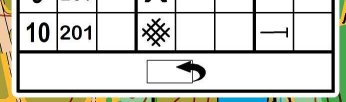
When the two maps are on either side of the same sheet of paper, and you wish to include the IOF control descriptions symbol for "Map flip", you can designate the map change point as a "Map Flip" point instead. There is no difference between the "map flip" vs the "map change" other than the inclusion of the map flip symbol in the control descriptions.
Printing the parts of the course or control descriptions
When you want to print the individual parts of a course with map change, use the menu item "Print" / "Maps with courses".
In the course list, the courses with map change have a "+" to the left of them, to indicate that they have multiple parts.
When you click on the "+", the course expands and shows a list of its course parts. In this list, check the individual course parts that you want to print. There is even an "Entire course" item in case you want to print the entire course.
Similarly, when you export courses to PDF or other graphics formats.
When you print from the Course Layout Editor, the printout shows the entire course. This printout is not intended for competitors, only for course planner and vetter.