|
Shaping an Overlaid Graphics Image
|   |
|
Shaping an Overlaid Graphics Image
| |
When you have placed the image on the canvas, you can move it, crop it, and resize (scale) it to fit the purpose.
 button on the Course Edit Tools toolbar.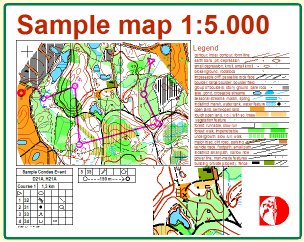
You can now
If you need to cover parts of the image, you can use a Mask Area
Note that the top left corner of the image is a "fixpoint". When you resize the image, the top left corner remains at the same location on the canvas.