|
How to edit route choice lines and marked routes
|   |
|
How to edit route choice lines and marked routes
| |
When editing route choice lines — and course leg lines with marked routes — Condes uses "rubber band" mode.
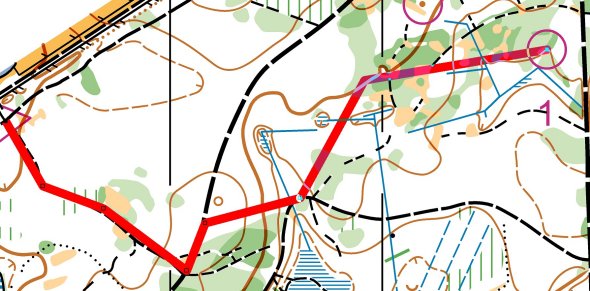
When selecting the line, it is highlighted and appears as a wide red line.
To insert a corner, use the Insert Point button  .
.
When entering Insert Point mode, the line now appears as a red "rubber band", that you can manipulate by moving the mouse cursor.
Now draw the line by moving the mouse and clicking (left mouse button) at the locations where you want corners. By clicking the right mouse button, you remove the previous corner.
When selecting a line with existing corners, the "rubber band" is placed on the last "segment" of the line. If you need to insert a point at a different segment, simply click on that segment while in Insert Point mode.